




 HUOAD
HUOAD
2026 Apple ID Tutorial: Correct App Store Login – Avoid iCloud to Securely Download Overseas Apps
Essential Skills for Cross-Border Operations: How to Safely Switch to US/Overseas Apple IDs and Avoid Privacy Syncing & Device Lock Risks.
Many beginners mistakenly sign in to overseas Apple IDs directly through the phone's system settings. This not only causes personal data clutter but can also trigger Apple's security protocols and lock your device. This tutorial teaches you how to sign in exclusively at the App Store level, creating a safe and clean environment for app downloads. It is a fundamental course for Facebook/TikTok media buyers and cross-border sellers.
After getting an overseas Apple ID, people often worry about how to use it, where to log in, how long it will last, and how to avoid being banned. This guide provides a comprehensive answer.
Wrong login method: Do NOT sign in via "Settings" to avoid device lockout and potential financial loss.
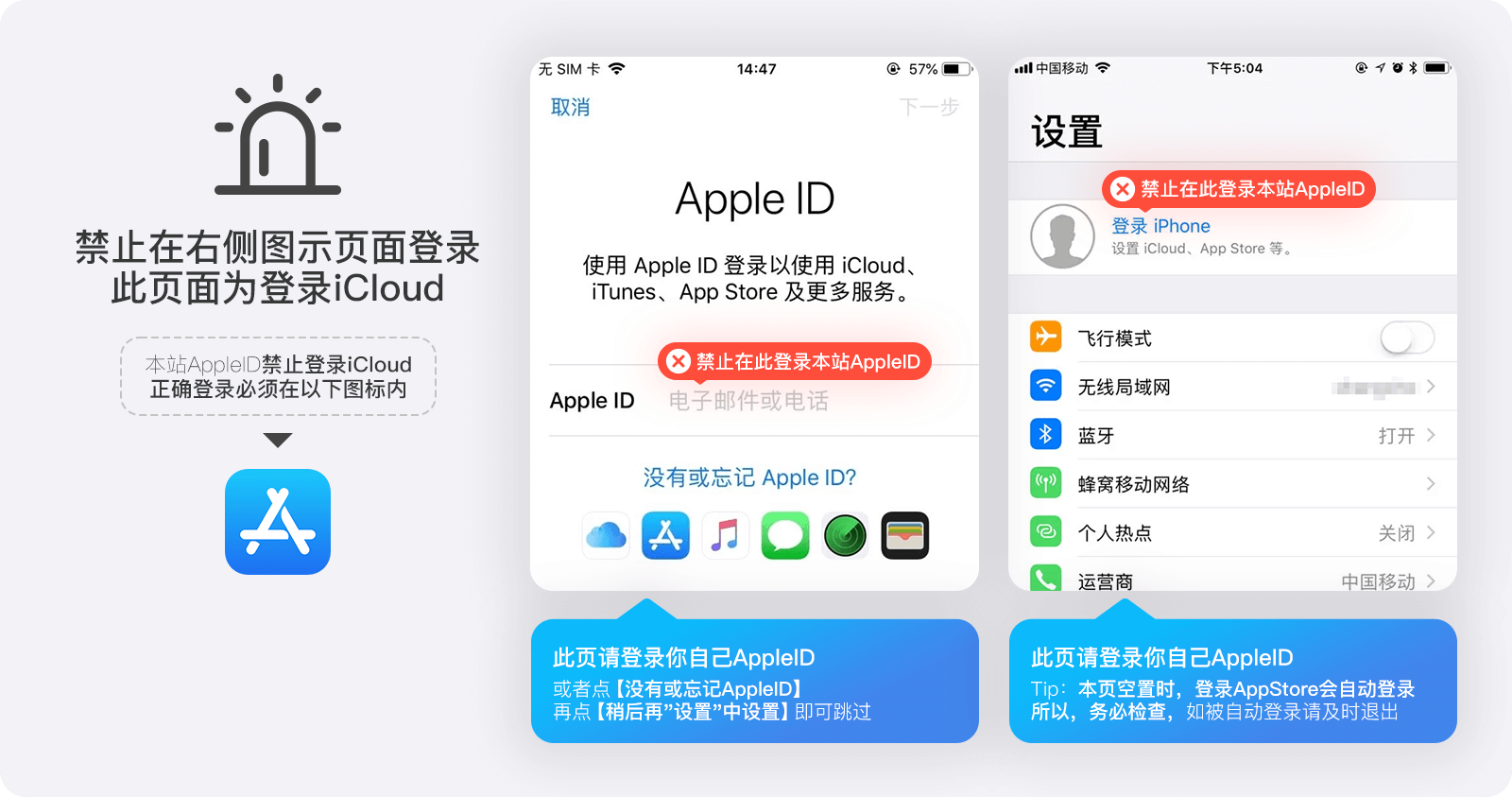
Correct Login Method
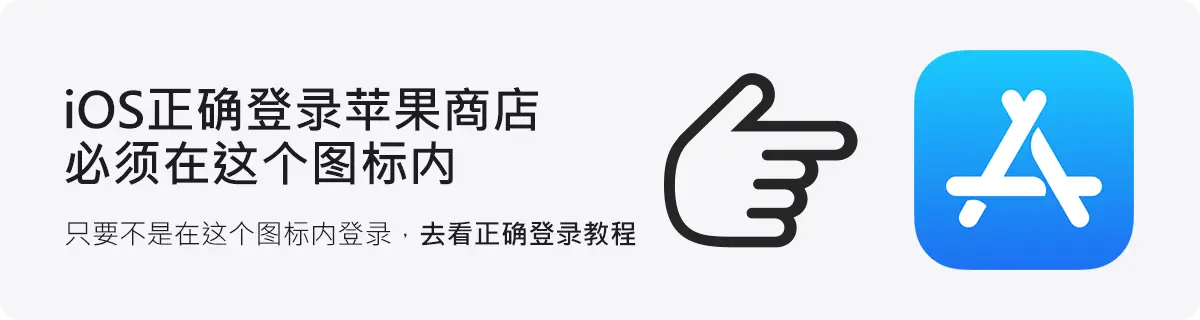
[Note] Due to Apple's risk control policies, please do not sign in to iCloud via "Settings" to avoid account deactivation and the risk of device lockout! Both new and old IDs may occasionally appear as unactivated. If your account is within the warranty period, we will replace it for free. If the warranty has expired, please attempt to activate it yourself!
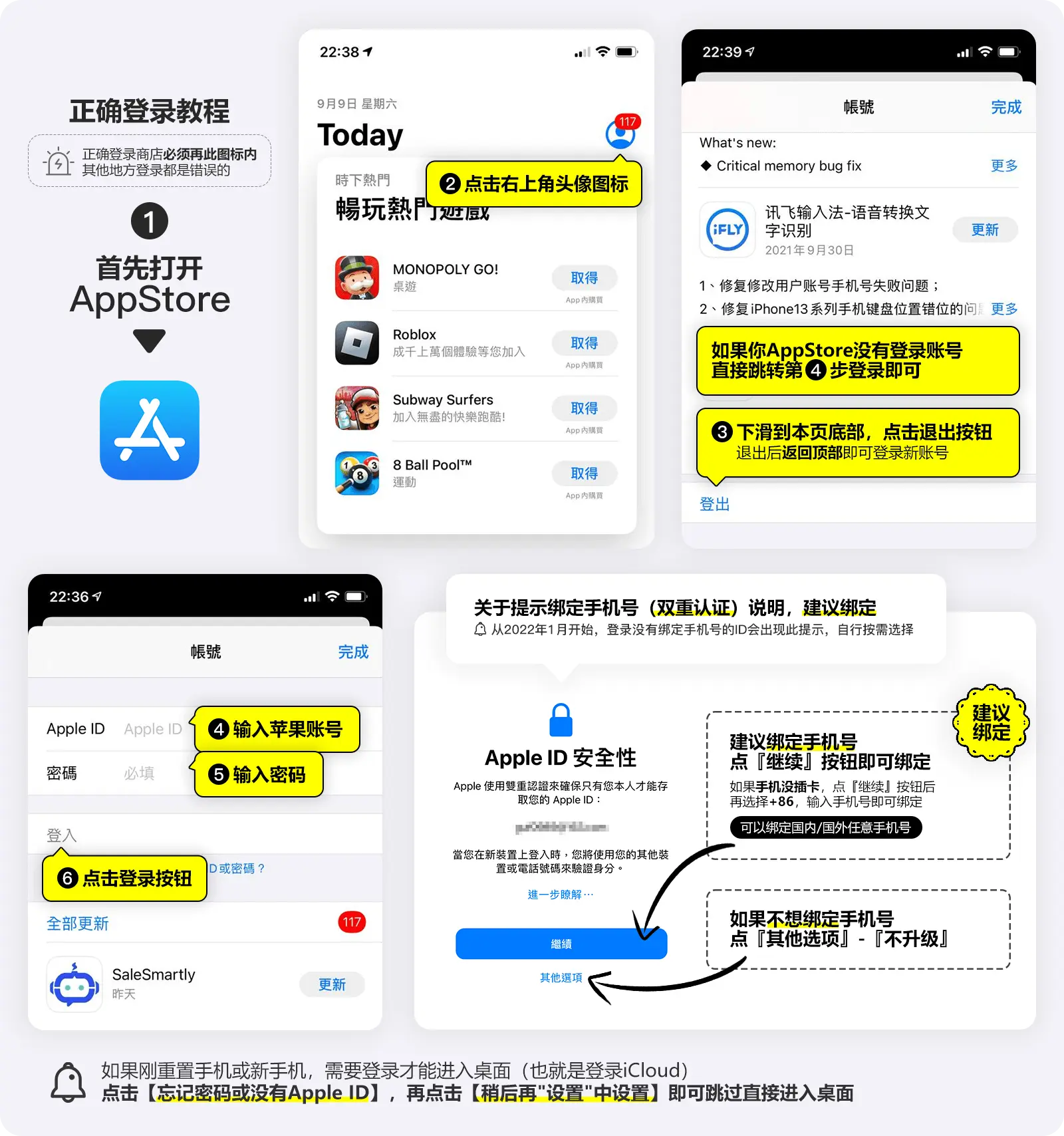
Correct App Store Login Tutorial (As shown in the image below)
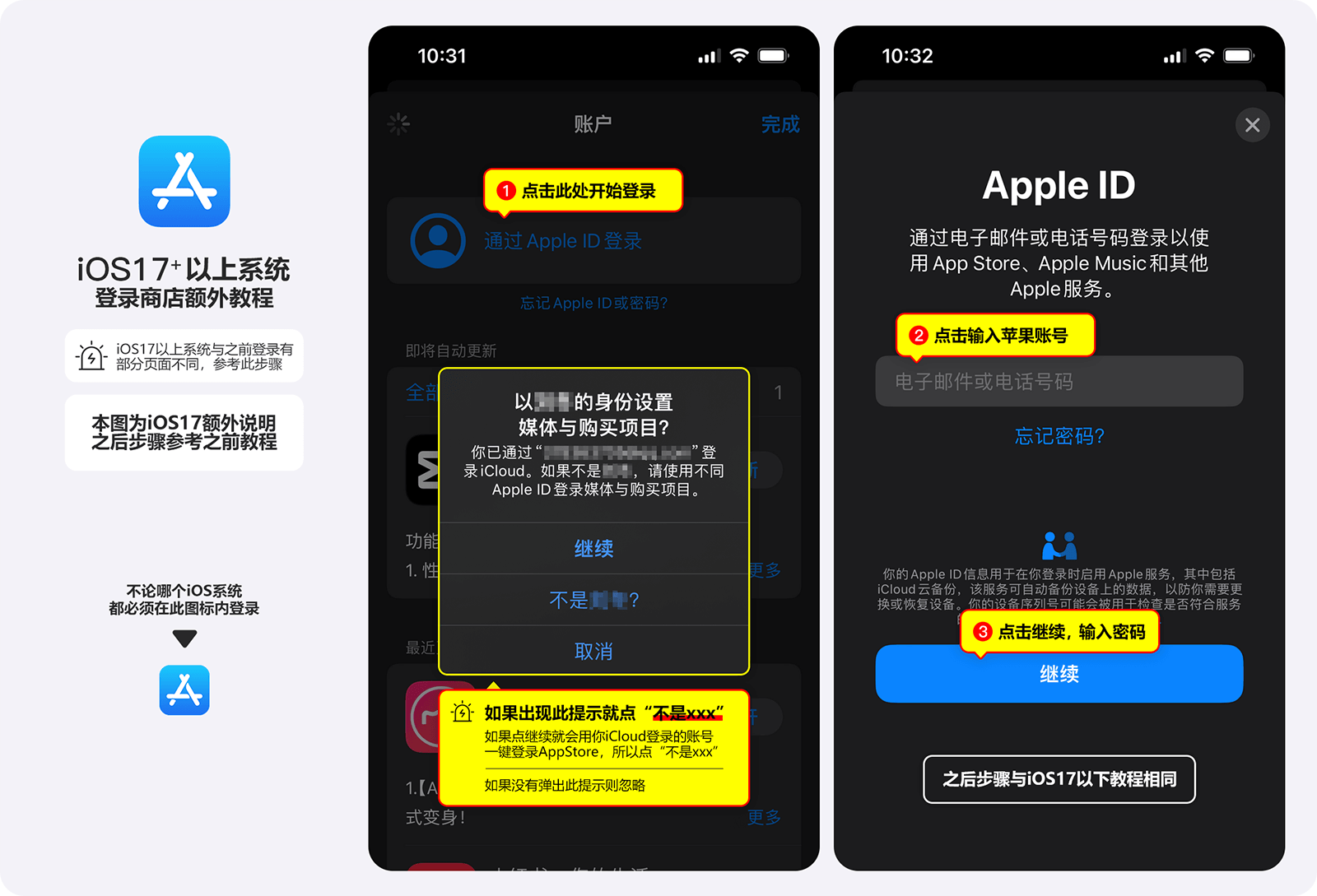
iOS17+ device interfaces vary slightly; refer to the image below for login.
Regarding Mobile Number Binding:
If you need to bind a mobile number (recommended), click the Continue button and follow the on-screen prompts. Ensure you select China (+86) on the phone number entry page. (Tip: Binding a phone number from any country will not change the Apple account's region.) Of course, if you have a phone number from another country, simply select the corresponding country code.
Security Issues
- Login Recommendation: It is highly recommended to sign in only via the App Store. Do NOT sign in via "Settings." This effectively prevents data leaks, device lockouts, and the risk of the system automatically reverting your overseas ID region back to your local region.
- Password Errors: If you see a "Password Incorrect" prompt, please double-check your credentials. Be careful to distinguish between the number 1 and lowercase i, and the number 0 and the letter o.
- Connection Issues: If the login is lagging or failing to connect, it is usually a network issue. Try switching between 4G/5G and Wi-Fi, or try reconnecting a few times.
- Account Locked/Disabled: If a purchased ID shows as "Disabled" or "Locked," log in to the official Apple website and use your security questions to reset the password.
- App Update Issues: If you cannot update an app after logging into a new ID, check if the app was originally downloaded using a different (or shared) ID. Apps are bound to the ID used for the initial download. To fix this, uninstall the app and redownload it using your new account.
Other Related Issues
- Apple ID login prompts "Cannot Sign In"? Or keeps loading?
- Login prompts "Incorrect Account or Password"?
- How to log in and download software?
- [WARNING] Forbidden to log in via "Settings"!!!
- Updating APP prompts "Your account has been disabled in the App Store and iTunes."
- How to avoid being banned on an overseas Apple ID.
- Do not modify the account immediately. Do not log in via Settings. Do not share the ID with others. Follow these three points to keep your overseas ID for a long time.